Hello together,
as some of you know i have worked in a 3rd level support desk and we created some scripts to make our daily work easier. Here i want to show you one of these. It is pretty easy written but very effective.

Hello together,
as some of you know i have worked in a 3rd level support desk and we created some scripts to make our daily work easier. Here i want to show you one of these. It is pretty easy written but very effective.
Hello together,
most of you which worked in a servicedesk or with many computers will know WMI-errors. Sometimes the WMI of a computer gets corrupted and depending products like the SCCM-agent stops working properly. Herefore try to use the following script which repairs and rebuilds the WMI of the computer. But see this procedure as last line of defense – if you do not have any other options, try this one and restart twice.
Herefore just copy the whole script into a batch file and execute it as administrator.
winmgmt /resyncperf
winmgmt /salvagerepository
winmgmt /resetrepository
sc config winmgmt start= disabled
net stop winmgmt /y
net stop ccmexec /y
%systemdrive%
cd %windir%\system32\wbem
For /f %%s in ('dir /b *.dll') do regsvr32 /s %%s
::regsvr32 wmisvc.dll
net start winmgmt
net start ccmexec
for /f %%s in ('dir /b *.mof *.mfl') do mofcomp %%s
Good look on reparing the clients.
~ David
Hello together,
take a look at this nice MVA-course. It´s a nice roundup of simple XAML files to give you a really good introduction for PSGUI.
MVA – A Developer’s Guide to Windows 10
Have fun with it and happy learning.
Greetings, David
Hello together,
if you work with more complex scripts behind the GUI you will come to a point, where you want to make changes to the GUI appearance within the CodeBehind-file. An example herefore would be the usage of a progressBar. But how can this be done?
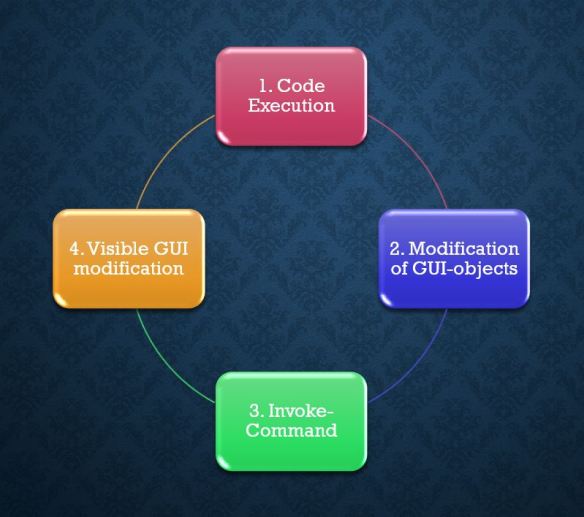
Hello together
if you want to raise an event by your powershell code use the following command:
$GUI_Manager_rCodeBehind.RaiseEvent((New-Object -TypeName System.Windows.RoutedEventArgs -ArgumentList $([System.Windows.Controls.Button]::ClickEvent)))
The variable (here: $GUI_Manager_rCodeBehind) is the object from which you want to raise the event. In the parameters you have to insert your event in the ArgumentList. This example is for a ButtonClick event – [System.Windows.Controls.Button]::ClickEvent).
May be you will need it at some point.
Greetings,
David
Hello together,
today i want to show you one of the most essential and powerful ways to fill a GUI with life. Bindings.

Hi together,
in the previous post i described what a dialog consists of and introduced the module PSGUI. Now i will show you some features which will work mostly at the loading time.

Hello together,
3 months ago i started a project to create user interfaces for Powershell with WPF as simple as possible for everyone by using a – POWERSHELL GUI.
Powershell GUI with Powershell GUI?! – sounds paradox – but hey – one example will be ready the whole time. 😀
Many times there had been administrators, customers and friends who asked for a GUI in PS. Probably the loudest group crying had been the administrators who normally should work easily with Powershell. But IT-guys are lazy – and because of these laziness we create powerfull scripts which make life easier. And if a wonderfull looking GUI is on top of this functionality – even better!
Though you should never forget – by adding a GUI to a module / function of yours you can prevent lots of input errors by the user. The user gets happy because he can click and sees a wonderful design and you can add an additional abstraction layer preventing lots of headaches.
Aims
The primary aims with this project had been:

PSGUI v0.1
Interested? then take a look into!
Hello all,
i have worked a little bit with ACLs in Powershell and it is a little bit tricky. So i will roundup the code and the most important information for you guys.
This code snippet is a little example how to set the rights for a given folder.
# directory to update
$directory = "C:\Temp\test"

# group object 'sAMAccountName' to add to NTFS permission
$addGroup  = "example_access_read"

# Configure the access object values - chosen by matrix
$access      = [System.Security.AccessControl.AccessControlType]::Allow
$rights      = [System.Security.AccessControl.FileSystemRights]"Read,ReadAndExecute,ListDirectory"
$inheritance = [System.Security.AccessControl.InheritanceFlags]"ContainerInherit,ObjectInherit"
$propagation = [System.Security.AccessControl.PropagationFlags]::None
$ace         = New-Object System.Security.AccessControl.FileSystemAccessRule($addGroup,$rights,$inheritance,$propagation,$access)

# Retrieve the directory ACL and add a new ACL rule
$acl = Get-Acl $directory
$acl.AddAccessRule($ace)
$acl.SetAccessRuleProtection($false,$false)
Set-Acl $directory $acl
As you can see we need to define the $access, the $rights and a constellation for $inheritance and $propagation. The first 2 inputs are trivial as you can see. For the last two variables i have made a little table to simplify the conditions. Whether you want different objects (files/folders) or a different depth to be get applied by this rule you have to enter a different constellation for both variables:


With this information it is quite easy to set and migrate the ACLs of Files/Folders and so on. Hopefully it will help you!
Greetings,
~David
Hello all,
here i want to show you a nice and elegant method for logging, It´s only one of a various number of possible ways which you can easily extend even more.
Herefore we use a little Powershell trick that overrides the cmdlet. When Powershell tries to resolve this command it will first try to find a function in your code. Here we add our logging methods and invoke the actual function. Sounds hard? nope.
<#          .NOTES          ============================================================================         Created on: 14.02.2016
Created by: David das Neves
Version: 0.2
Project: LogExt
Filename: LogExt.ps1         ============================================================================          .DESCRIPTION  Simple Logging extensions. #>

#    INPUT
#    ============================================================================
        Set-Variable WriteLogFilePath -Value 'c:\temp\standard.log' -Scope Global
#    ============================================================================

function Out-Default
{
    <# .Synopsis Simple Logging extension. .EXAMPLE Out-Default "logging message" #>
    [cmdletbinding()]
    [AllowEmptyCollection()]
    Param(
        [Parameter(
                   ValueFromPipeline=$true
                   )]
        [string]$Message
    )
    if ($Message)
    {
        $FunctionName = $MyInvocation.MyCommand.Name.ToString()
        Write-WithLog 'Write-Output' $Message
    }
}

function Write-Host
{
    <# .Synopsis Simple Logging extension. .EXAMPLE Write-Host"logging message" #>
    [cmdletbinding()]
    Param(
        [Parameter(Mandatory=$true,
                   ValueFromPipeline=$true,
                   ValueFromPipelineByPropertyName=$true,
                   Position=0)]
        [string]$Message
    )
    Write-WithLog $MyInvocation.MyCommand.Name $Message
}

function Write-Output
{
    <# .Synopsis Simple Logging extension. .EXAMPLE Write-Output "logging message" #>
    [cmdletbinding()]
    Param(
        [Parameter(Mandatory=$true,
                   ValueFromPipeline=$true,
                   ValueFromPipelineByPropertyName=$true,
                   Position=0)]
        [string]$Message
    )
    Write-WithLog $MyInvocation.MyCommand.Name $Message
}

function Write-Warning
{
    <# .Synopsis Simple Logging extension. .EXAMPLE Write-Warning "logging message" #>
    [cmdletbinding()]
    Param(
        [Parameter(Mandatory=$true,
                   ValueFromPipeline=$true,
                   ValueFromPipelineByPropertyName=$true,
                   Position=0)]
        [string]$Message
    )
    Write-WithLog $MyInvocation.MyCommand.Name $Message
}

function Write-Verbose
{
    <# .Synopsis Simple Logging extension. .EXAMPLE Write-Verbose "logging message" #>
    [cmdletbinding()]
    Param(
        [Parameter(Mandatory=$true,
                   ValueFromPipeline=$true,
                   ValueFromPipelineByPropertyName=$true,
                   Position=0)]
        [string]$Message
    )
    Write-WithLog $MyInvocation.MyCommand.Name $Message
}

function Write-Debug
{
    <# .Synopsis Simple Logging extension. .EXAMPLE Write-Debug "logging message" #>
    [cmdletbinding()]
    Param(
        [Parameter(Mandatory=$true,
                   ValueFromPipeline=$true,
                   ValueFromPipelineByPropertyName=$true,
                   Position=0)]
        [string]$Message
    )
    Write-WithLog $MyInvocation.MyCommand.Name $Message
}

function Write-Error
{
    <# .Synopsis Simple Logging extension. .EXAMPLE Write-Error "logging message" #>
    [cmdletbinding()]
    Param(
        [Parameter(Mandatory=$true,
                   ValueFromPipeline=$true,
                   ValueFromPipelineByPropertyName=$true,
                   Position=0)]
        [string]$Message
    )
    Write-WithLog $MyInvocation.MyCommand.Name $Message
}

function Write-WithLog
{
    [cmdletbinding()]
    Param(
        [Parameter(Mandatory=$true)]
        [string]$FunctionName,

        [Parameter(Mandatory=$true)]
        [string]$Message
    )
    if($WriteLogFilePath -and $Message)
    {
        Add-Content -Path $WriteLogFilePath -Value ('{0} [{1}]: {2}' -f `
        (Get-Date -Format G), ($FunctionName.Split('-')[1]), "$Message$newLine")
    }
    Invoke-Expression "Microsoft.PowerShell.Utility\$FunctionName `$Message"
}
With this code you have overwritten all Write-Commands:
– Write-Host
– Write-Output
– Write-Warning
– Write-Verbose
– Write-Debug
– Write-Error
Now you can just type your outputs as by Write-anything and the logging will be done at the same time.
Write-Host a
Write-Output b
Write-Warning c
Write-Verbose d
Write-Debug e
Write-Error f

To load the extension you have to import the script – you should also set the logging path. In this example the name of the variable herefore is $WriteLogFilePath.
Complete Loading:
Get-Item 'C:\PS\ExtLog\LogExt.ps1' | Import-Module
$WriteLogFilePath = 'c:\Temp\test2.log'
Have fun with it!
Greetings,
Dave
 Power in the shell